Creative and reporting
Creative Library overview
Understand creative search, folders, tags, creative types, record tabs, assets, placements, and preview shuffling.
Creative Library home
Start with search, filters, and views
The Creative Library home page is where you find existing creative, switch views, filter records, and create new creative items.
Open the Creative Library from workspace navigation.
Use the Creative Library when you want to browse, search, create, review, archive, or restore creative records across the workspace.
Search when you know what you need.
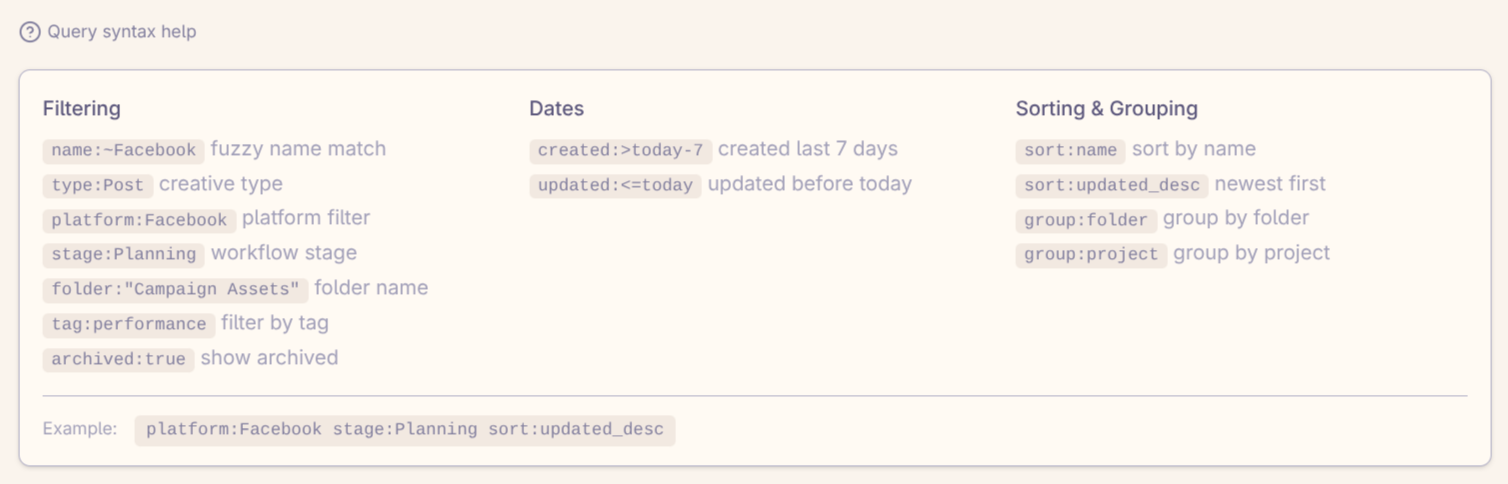
The search bar supports structured queries, so you can find creative by date, name, update time, and other criteria without scrolling through the whole library.
created:>today-7sort:namesort:updated_desc Switch views based on how you work.
List view gives you more detail for each creative. Grid view lets you scan more creative records at once.
Use filters for routine cleanup.
Preset filters make it easier to narrow the library by item type, stage, platform, creative type, and tag. The archived toggle lets you switch between active and archived creative records.
Create and link
Create the record where the work is happening
You can create creative from the library when you are doing cleanup or setup work, or from a placement when you are already building a media plan. Either way, the goal is the same: one creative record that can be reviewed and linked to the placements that use it.
Creation paths
Create from the library
Open the Creative Library and click “New Creative” when you already know you need a new creative record.
Create while linking to a placement
From a placement’s creative linking flow, click “Create New Creative” when you are building the plan and realize the creative record does not exist yet.
Link an existing creative
Open a media plan, find the placement, use the creative linking area, choose the creative, and click “Link.” Return to the placement to confirm it is connected.
What you’ll need
Every creative needs a name, a type, and whatever fields are required for that type. Add tags and notes when they will help the team find or understand the creative later.
- Creative name
- Creative type
- Any fields required by the selected creative type
- Tags for filtering and organization
- Notes for internal context when the creative type supports them
Organize
Keep the library usable as it grows
Folders give you structure; tags give you flexible labels. Use both so teams can find creative by campaign, platform, status, approval state, or internal workflow.
Folders keep related work together.
Folders are useful for campaign families, program groups, or any other structure your team uses to keep creative work tidy. You can nest folders, move creative by drag-and-drop, or use the creative settings menu to move a record later.
Tags make the library searchable in your team’s language.
Use tags for labels that matter to your team: campaign, market, audience, program, status, format, or approval context. Consistent tags make filtering useful instead of noisy.
Creative types
Choose the type that matches the platform work
Creative types model the ad format you are preparing. Pick the closest match so previews, fields, assets, and review context make sense later.
OmniPost
Use OmniPost for standard post-style ads. Select one platform if the creative is platform-specific, or select several platforms when the same creative should run across channels without creating duplicate records.
OmniCarousel
Use OmniCarousel for standard carousel ads on Facebook, Instagram, and LinkedIn. Reddit support is not currently included for this type.
Responsive Search Ad
Use Responsive Search Ads to manage search copy, including up to 15 headlines, 4 descriptions, and the supporting fields and assets that go with them. The Details tab can be used for feedback on individual pieces of copy.
Keyword List
Use Keyword Lists with Responsive Search Ads to track the keywords in the same ad group. A Keyword List can be linked to as many RSAs as needed.
RSA Asset Package
Use RSA Asset Packages for reusable search ad assets. Fill out the package once, then apply it across multiple Responsive Search Ads.
Display
Use Display for standard IAB ad sizes. Upload the images that match the sizes your placements need.
Demand Gen
Use Demand Gen for Google Ads Demand Gen campaigns, which have different asset sizes and requirements than standard display creative.
LinkedIn formats
Use LinkedIn InMail, Conversation Ad, and Document Ad types when the creative is built for those LinkedIn-specific formats.
Text Ad
Use Text Ad for Reddit text-first campaign units.
Record tabs
Review each creative from the right angle
Different creative types may expose different tabs, but these are the surfaces you will use most often when building, reviewing, and connecting creative.
Preview
Shows the creative or ad preview. It also includes discussion, comments, and feedback when that creative type supports review there.
Edit
This is where most setup work happens. Edit contains the fields for the selected platform and ad type, and it is where you update tags when needed.
Details
Use Details when you want to review the creative without editing it. Some creative types, such as Responsive Search Ads, support comments on individual fields from this view.
Placements
Shows the placements linked to the creative. You will only see placements you have permission to view.
Assets
Shows attached media files, such as images and videos, when the creative has assets available.
Keywords / Comments
Some creative types expose extra tabs. Responsive Search Ads can show Keywords; RSA Asset Packages use Comments instead of Preview because there is nothing visual to preview.
Workflow and access
Use workflow stages to make review clear
Creative workflow stages should tell the team what happens next. A stage can show that a creative is still being drafted, ready for internal review, waiting on revisions, approved, eligible to run, or complete. Workspace admins can adjust the stages, transitions, visibility, and approval rules so the path matches how your team reviews creative work.
Example stage path
- New
- In Progress
- Internally Reviewed
- Revisions Needed
- Approved
- Eligible
- Completed
Rules behind the path
Stages
Shape the path to match your team.
Workspace admins can rename, reorder, color, add, or retire stages so the workflow reflects how creative review actually happens.
Transitions
Control where each stage can move next.
Define valid stage changes — for example, Approved can move forward to Eligible or back to Revisions Needed instead of becoming a free-for-all status menu.
Approvals + permissions
Gate sensitive moves with the right roles.
Mark stages client-visible, require approval for sensitive steps, and pair approval permissions with the people who should move creative forward.
Preview shuffle
Review rotating creative combinations
Some previews can show only a few options at once. Shuffle helps you spot-check different combinations before the creative goes live.
What it does
Shuffle randomly changes which eligible headlines, descriptions, images, or assets appear in the preview.
When to use it
Use it when a creative has more possible options than can be shown in a single preview state.
What to check
Look for awkward pairings, missing context, or combinations that need copy or asset cleanup.