Creative and reporting
Overview of Nebula reports
Navigate workspace, project, and media-plan report scopes, then create insights in the right reporting context.
Reports are scoped. A workspace report shows workspace-wide performance, a project report shows only that project, and a media-plan report shows only one plan’s placements, budgets, spend, and flight dates. Create insights at the same level where you want people to find and discuss them.
Workspace reports
Open Reports from the dashboard to review workspace-level performance.
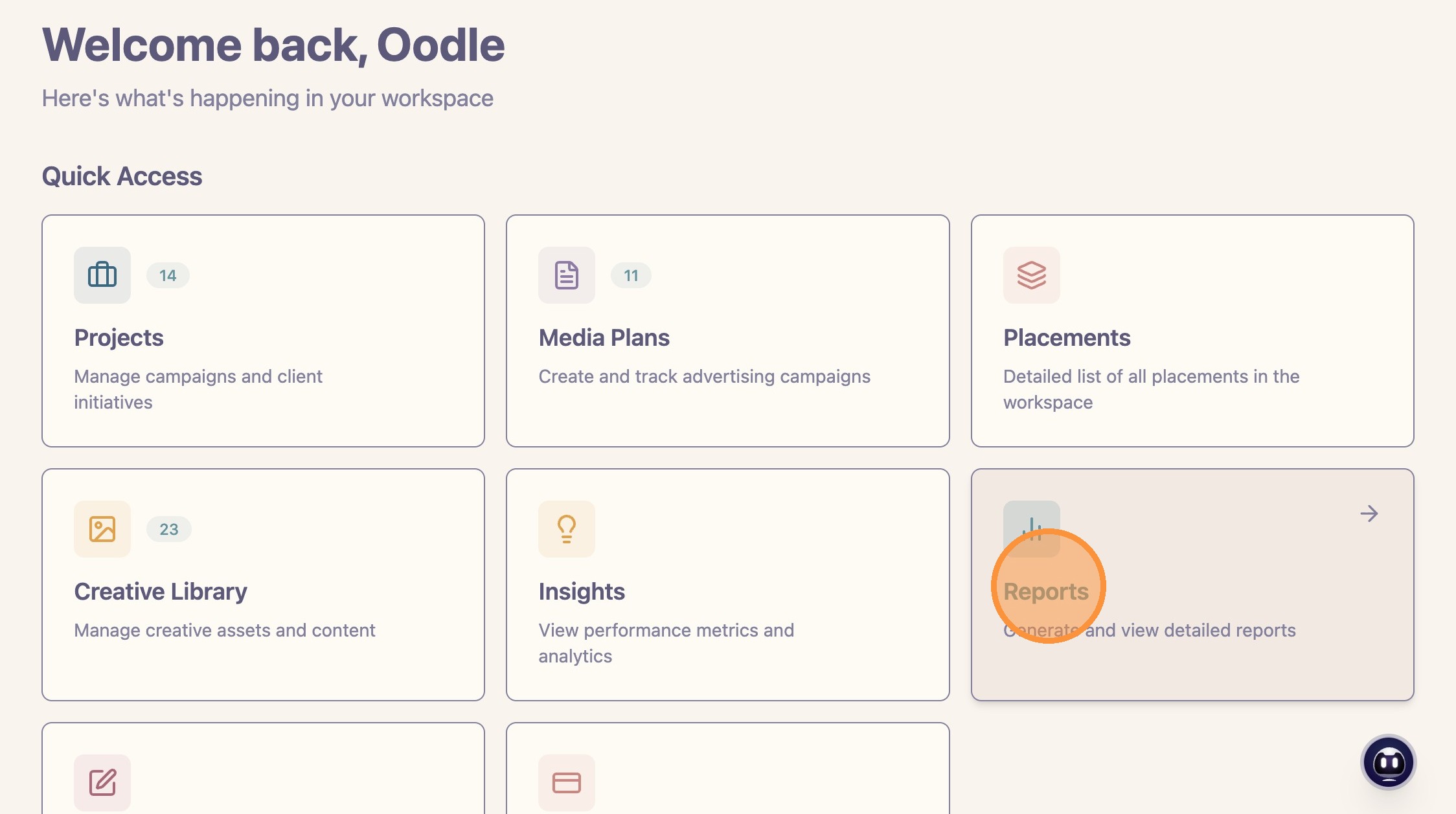
Alert: Choose the report scope before you create or review insights. Workspace reports include data across the full workspace. Project reports include only that project and its media plans. Media-plan reports include only one plan’s placements, budgets, spend, and flight dates.
Report cards can appear at the workspace, project, or media-plan level. Click a report card to open the specific report and explore its details.
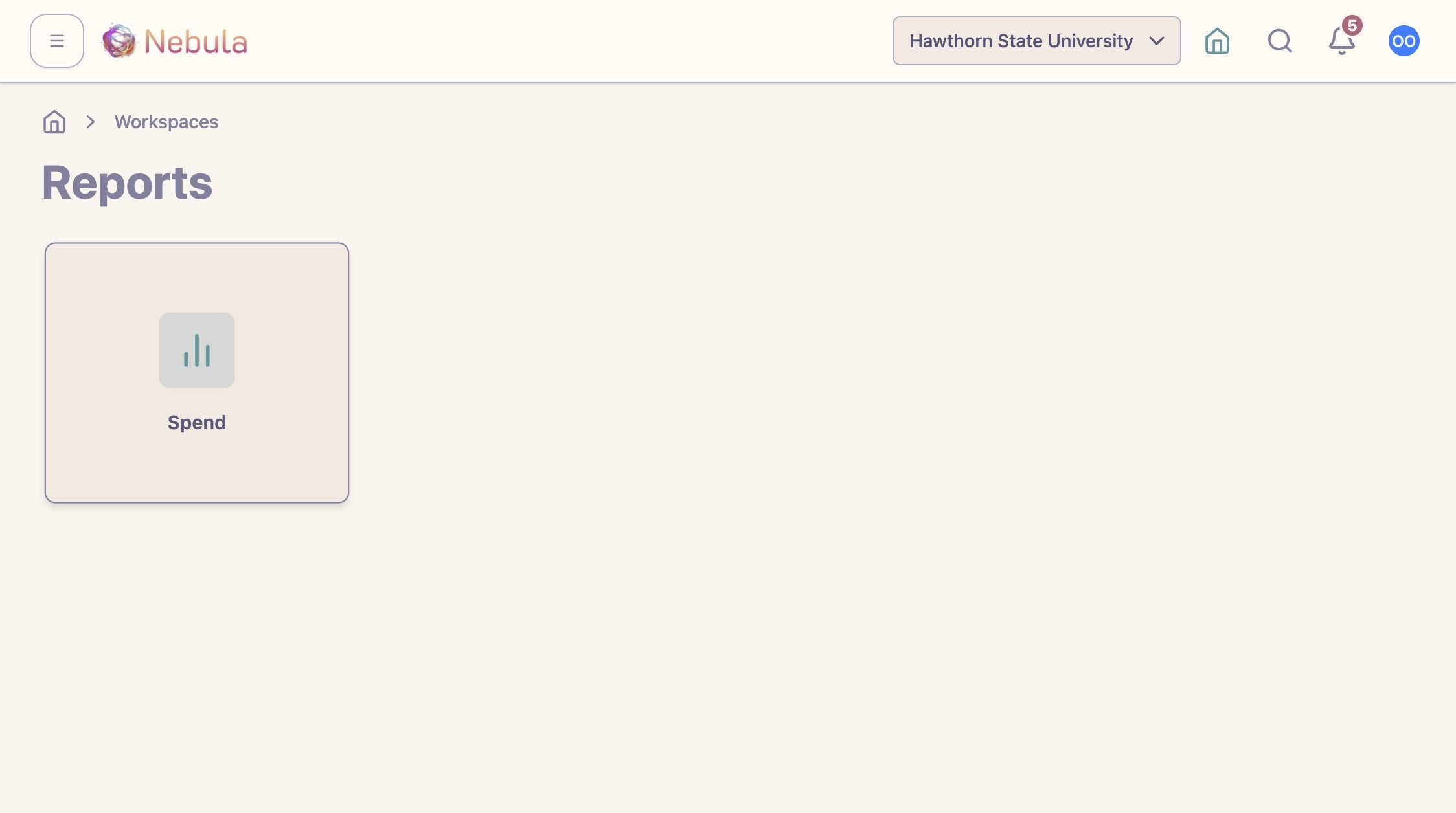
Tip: Insights belong to a specific report and report level. An insight created for a workspace-level report will not automatically appear inside a project report. Create the insight where your team expects to find and discuss it later.
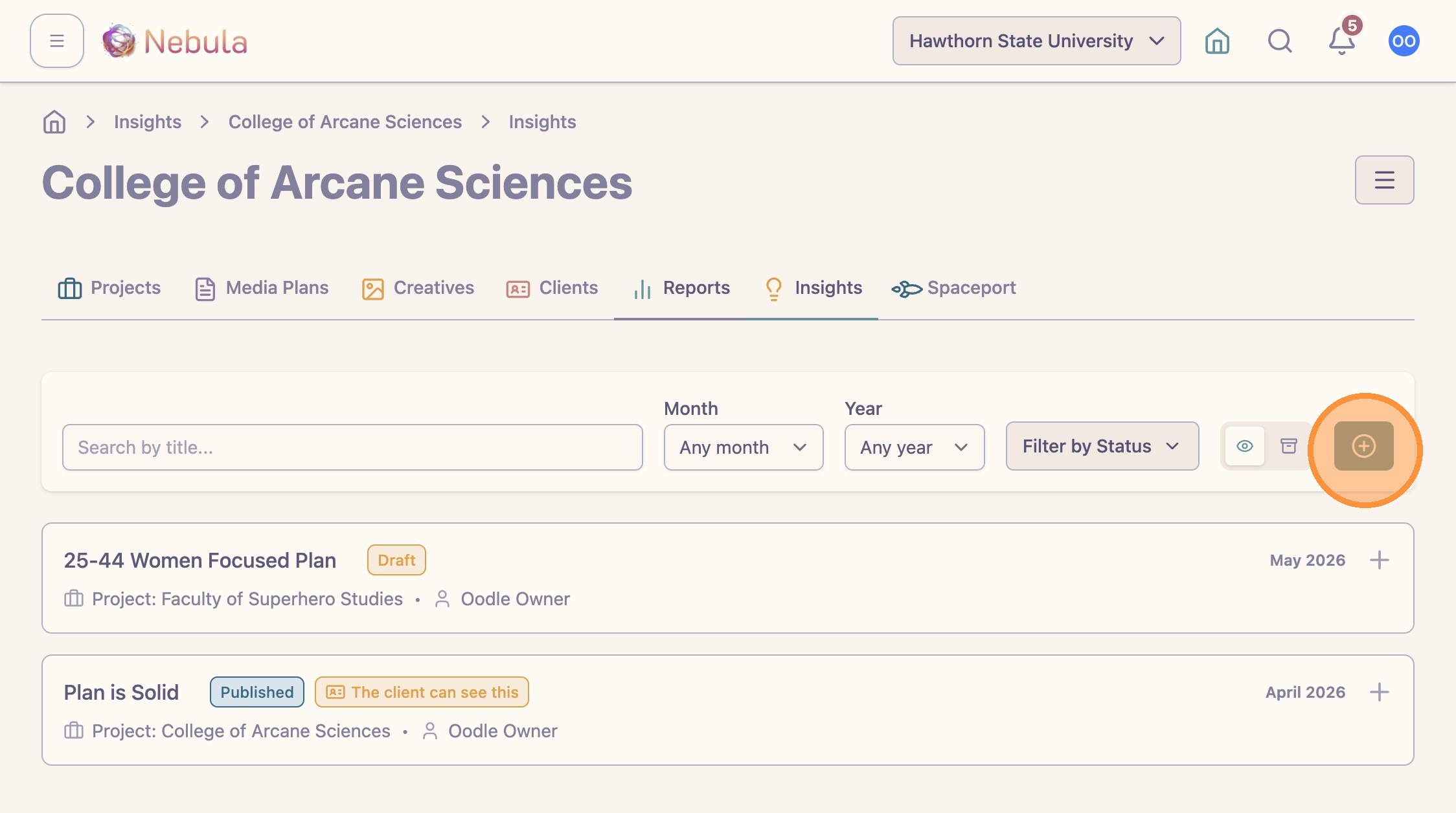
Project and media-plan reports
Open the report level that matches the question you are trying to answer. Use filters such as month, year, or status when you need to narrow the view. When you add a new insight, choose the location where that insight should live before you complete the prompt.