Start here
Profile and notifications
Update your profile photo, avatar color, time zone, Slack connection, and notification preferences.
Use this guide to update your profile photo, avatar color, time zone, and notification preferences. If Slack is available for your workspace, you can connect your account from your profile so Nebula can send notifications there.
Profile updates
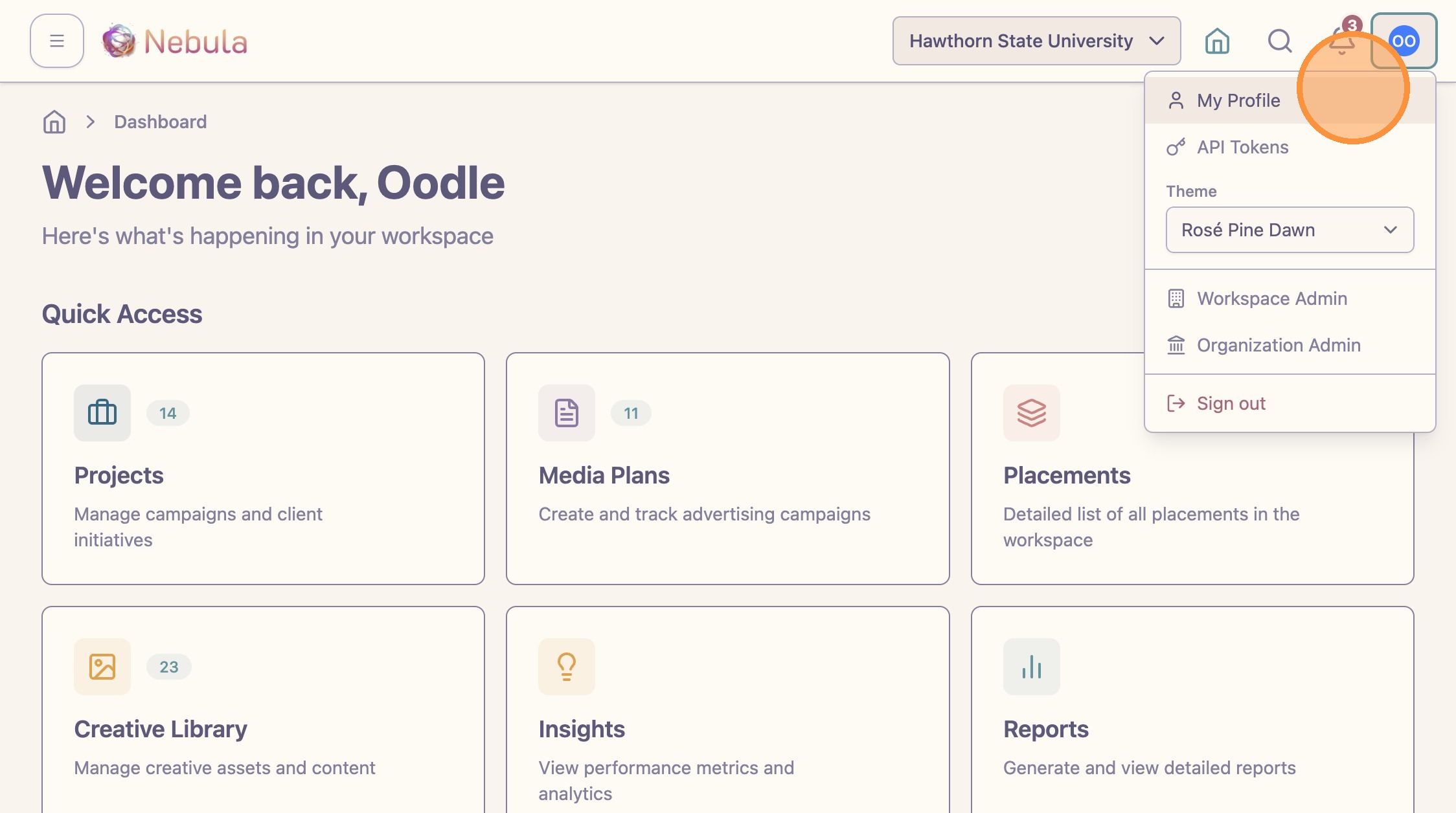
Open “My Profile” from your account menu.
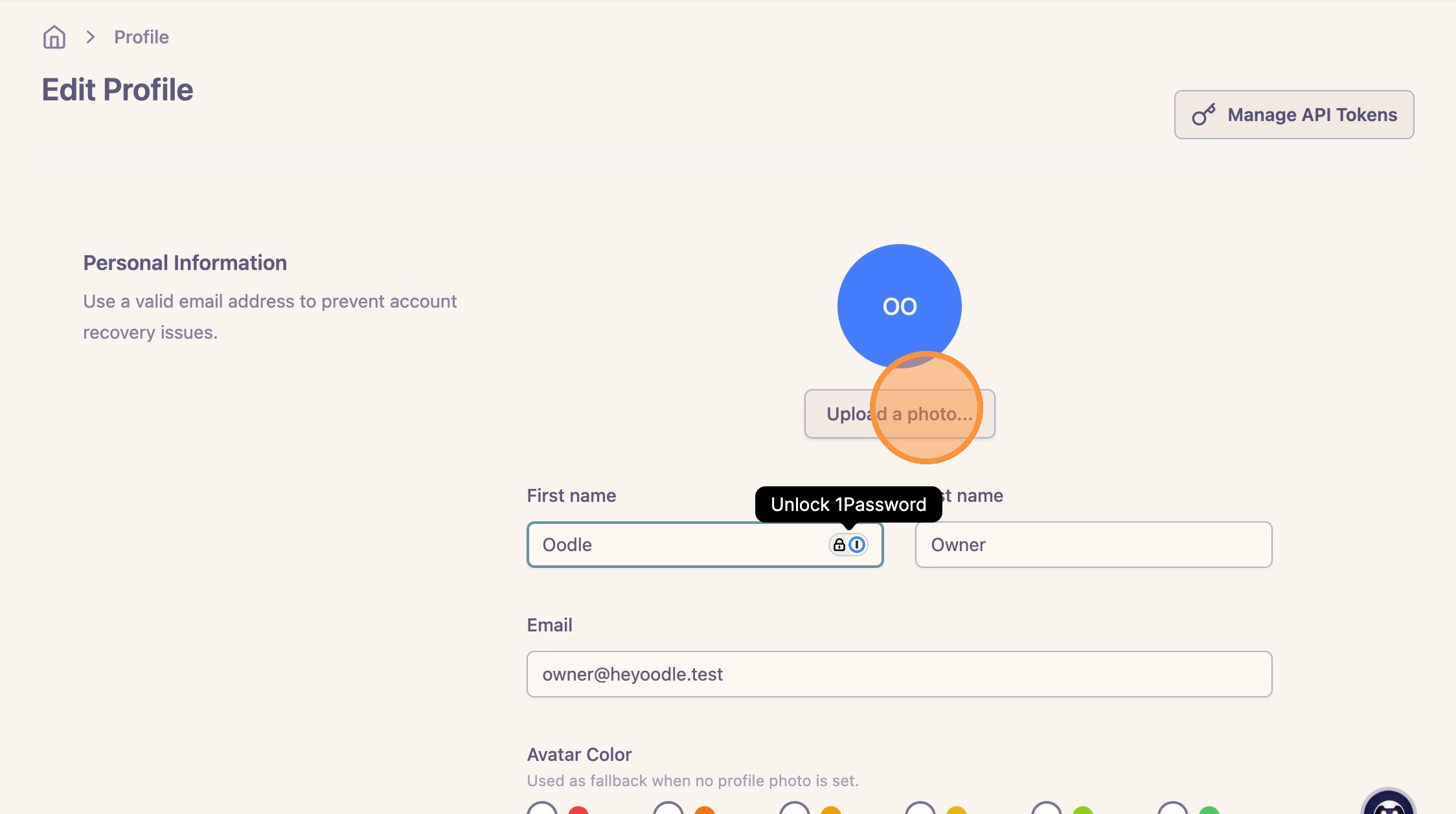
Click “Upload a photo” when you want to add or replace your profile image.
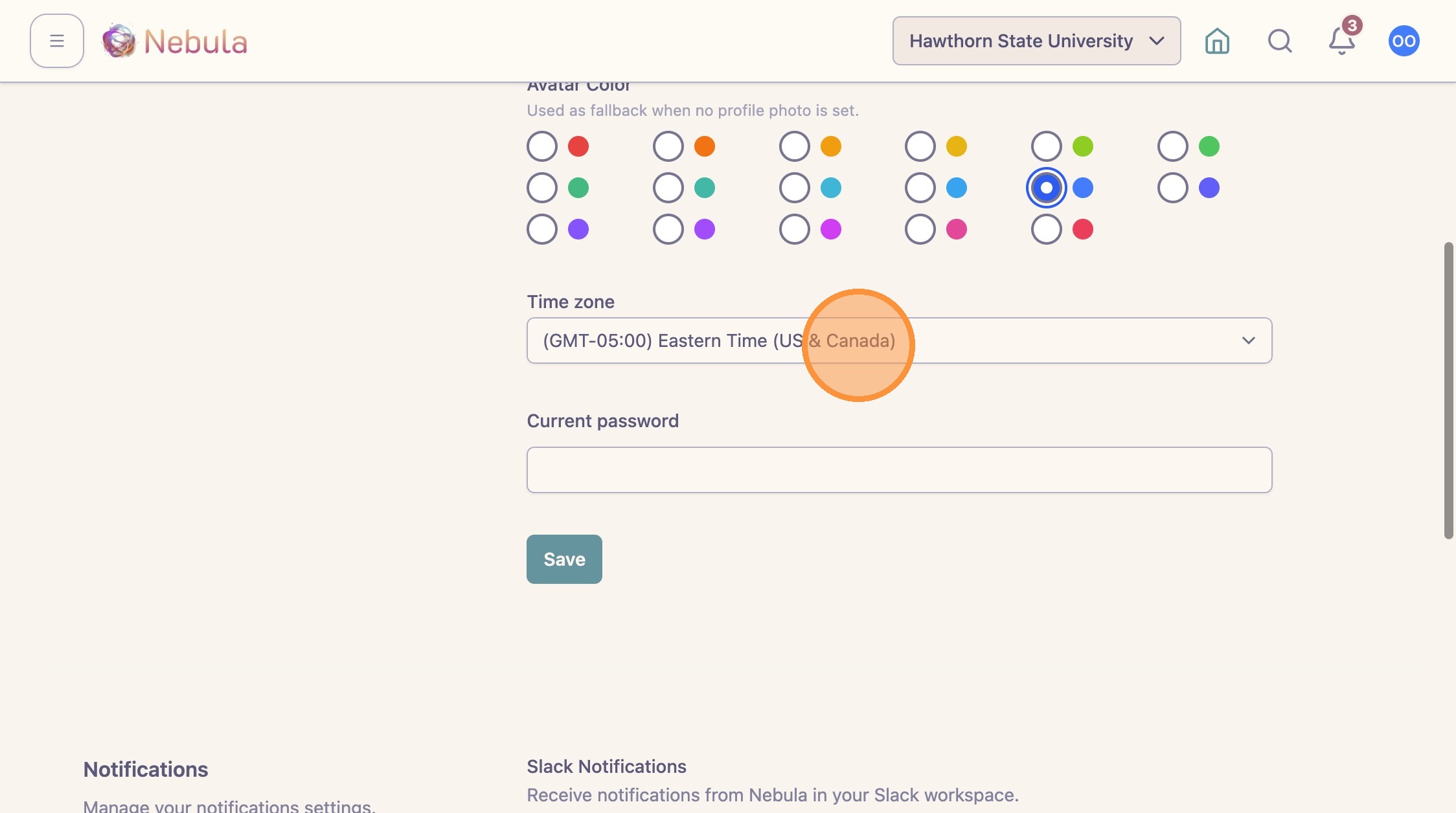
Choose an avatar color if you want another visual cue for your account.
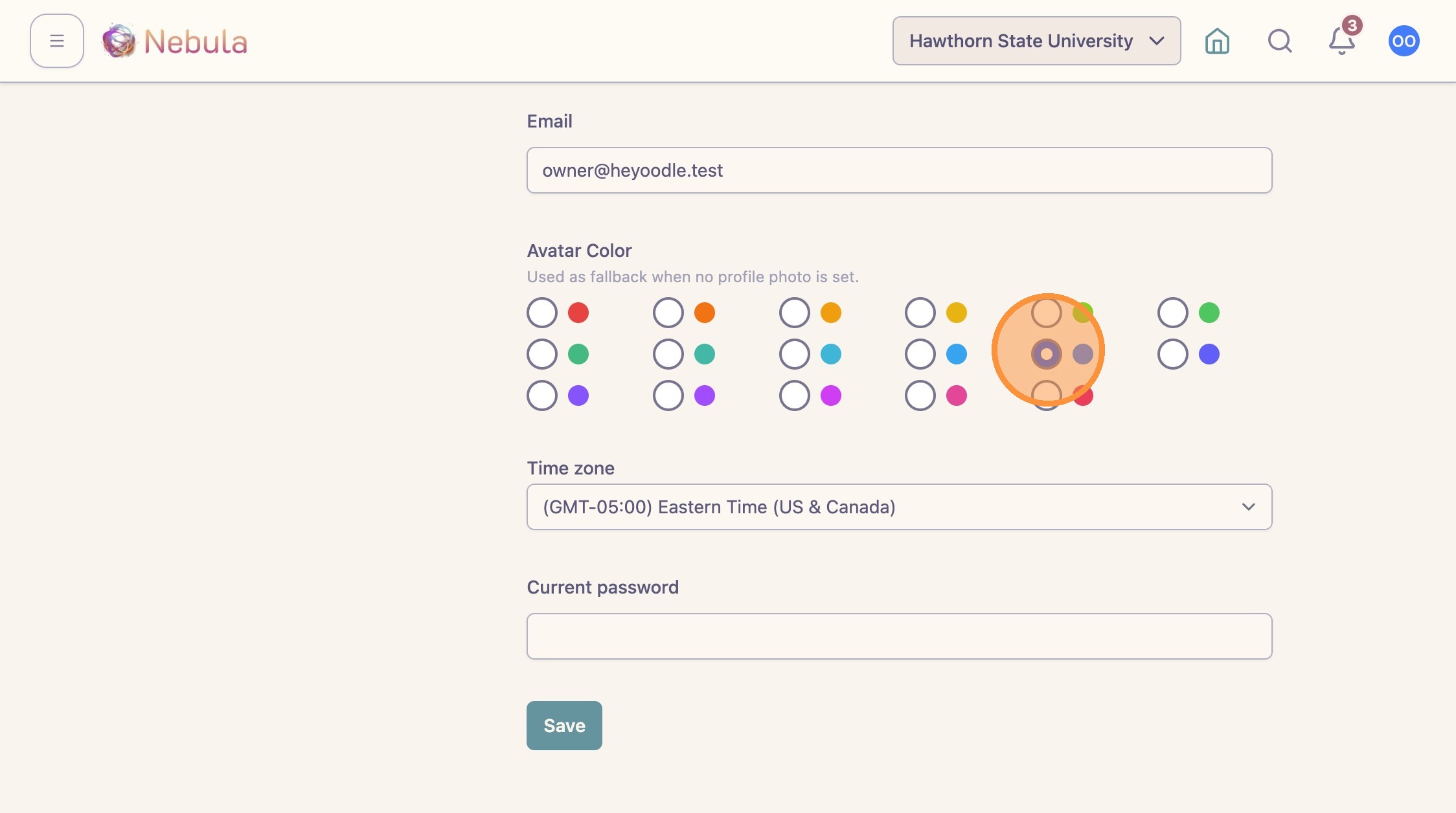
Choose your time zone so dates, notifications, and time-sensitive activity match where you work.
Notification preferences
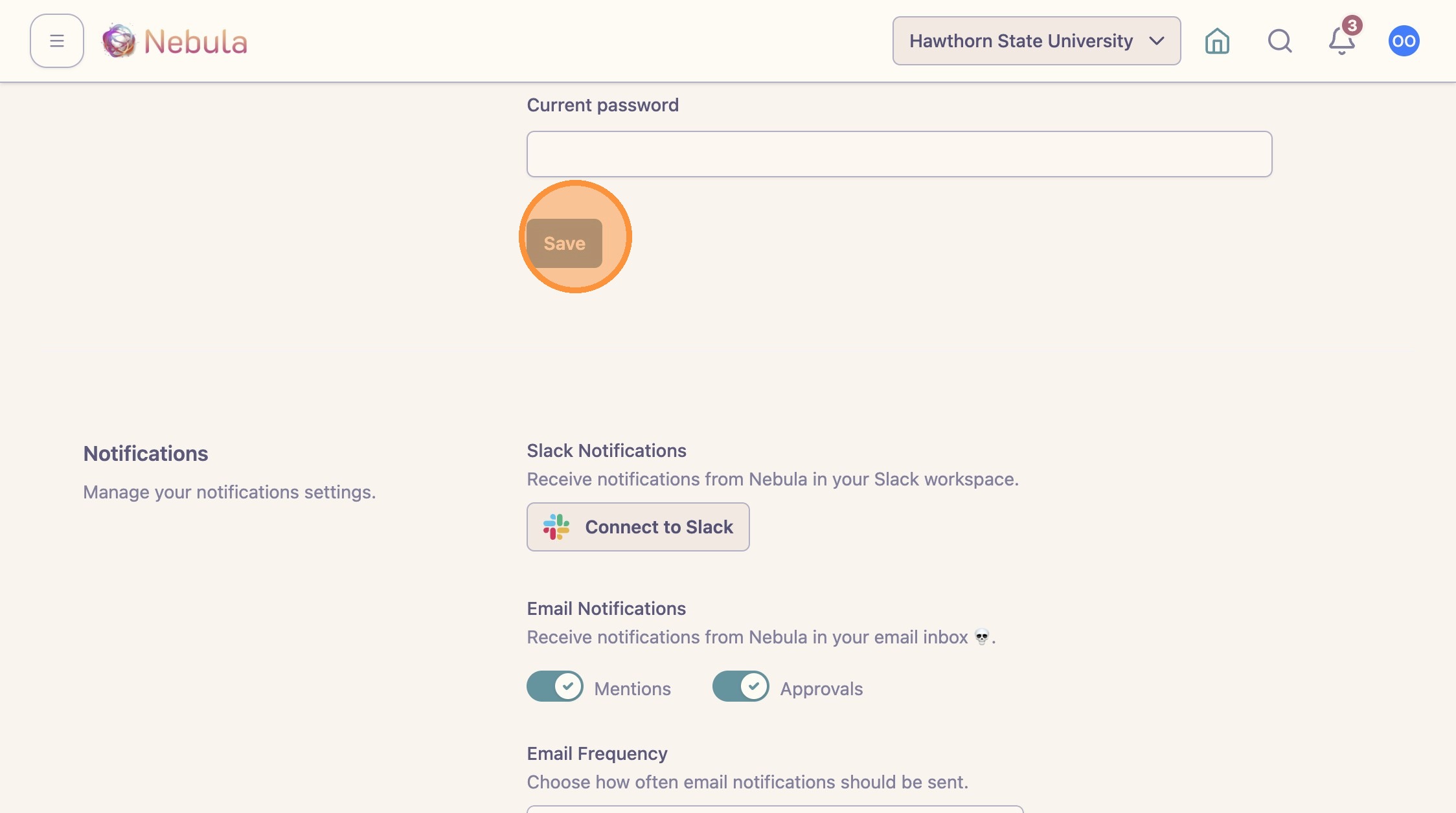
Click “Connect to Slack” if your workspace supports Slack notifications and you want Nebula to send updates there.
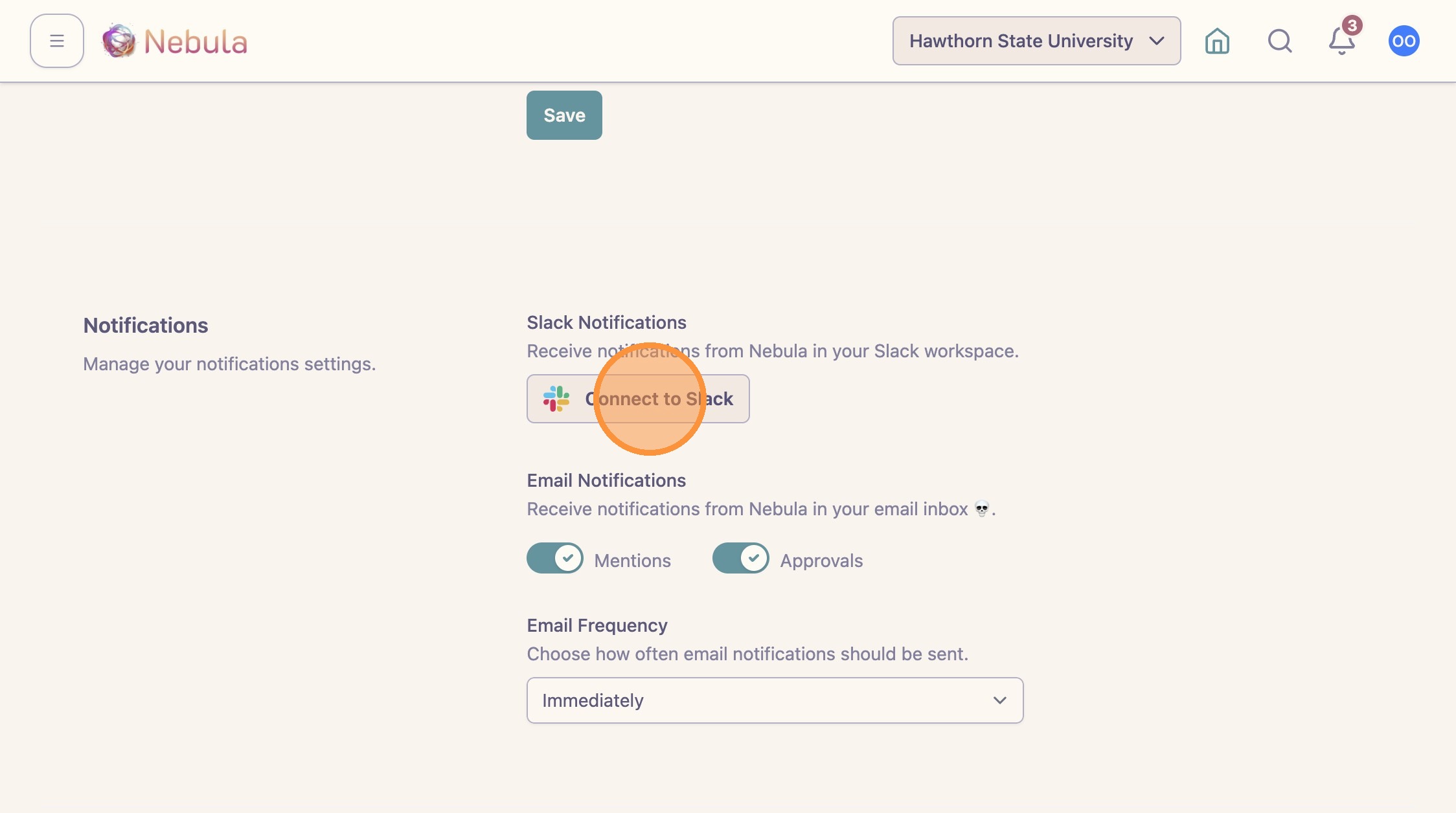
Choose how often you want to receive email notifications, then select the notification types you want Nebula to send.
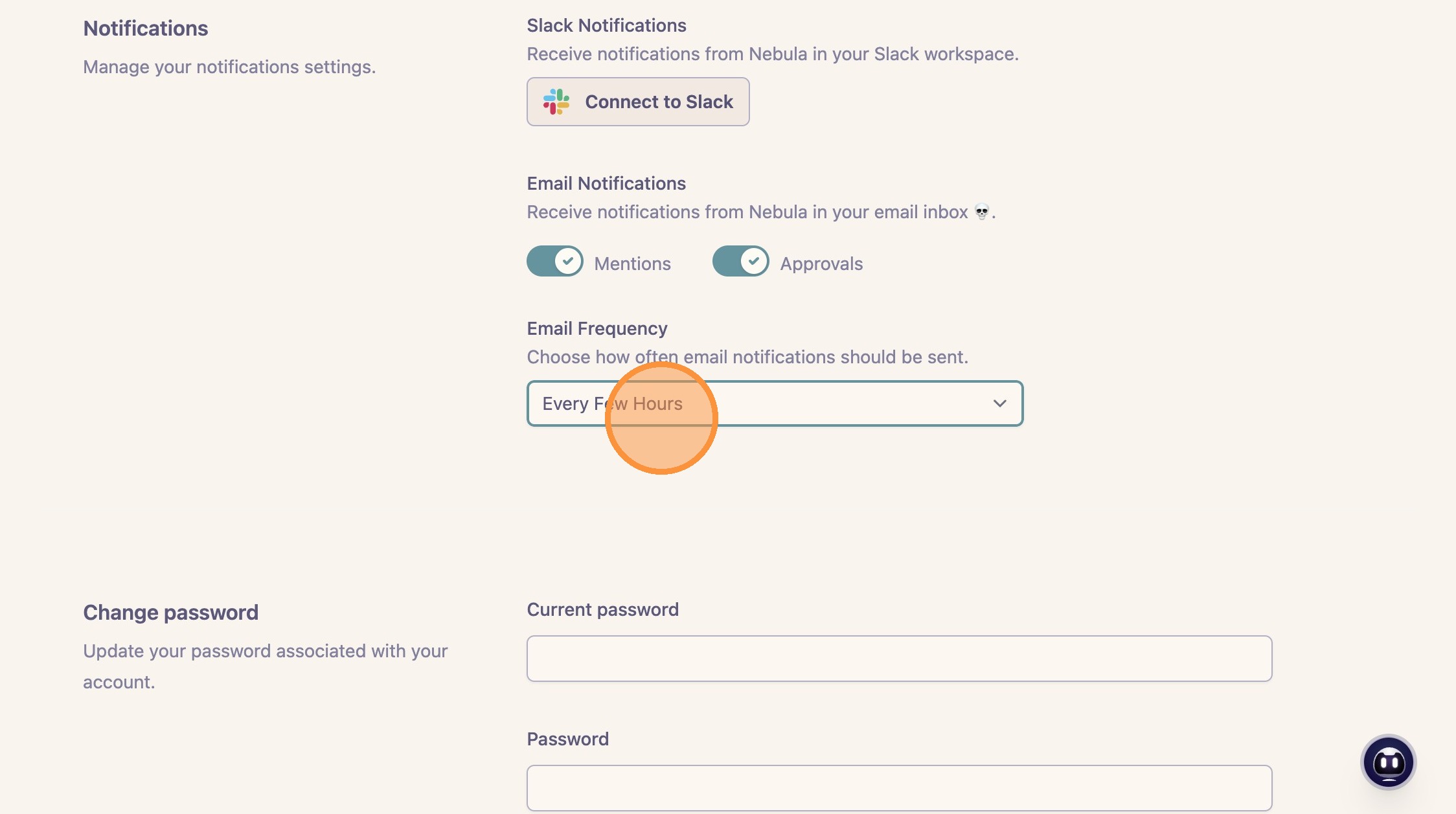
Click “Save” when your profile and notification preferences are correct.