Start here
Navigating across Nebula
A tour of the dashboard, navigation menu, project pages, media-plan review tools, and approval flow.
Use Nebula from the top down: start in your workspace, open the project that contains the work, then choose the media plan, report, creative record, or insight you need. The dashboard helps you return to recent work, while project pages keep related plans, creative, reports, and insights together.
Dashboard and settings
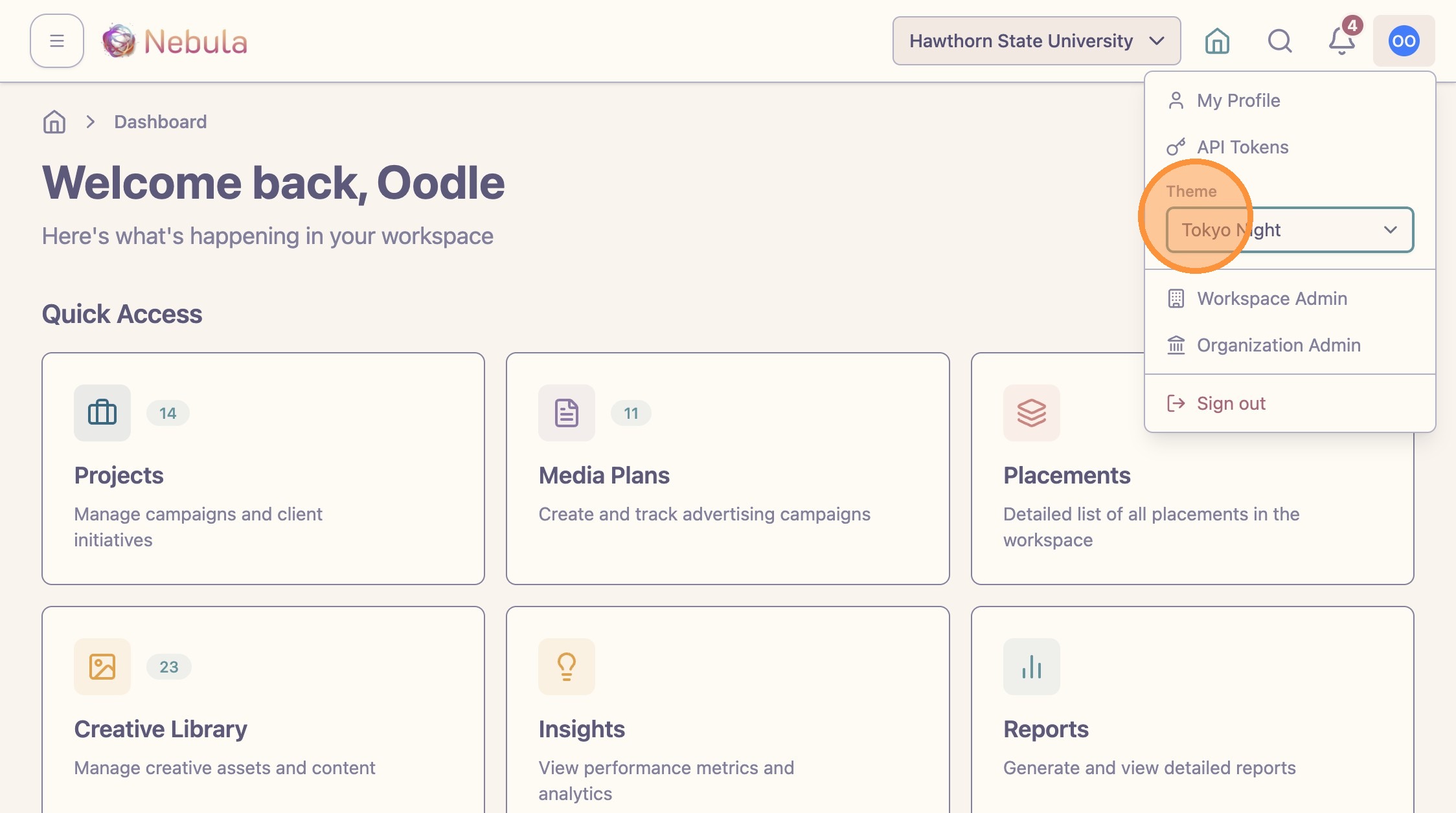
Choose your preferred theme if you want Nebula to match your light or dark interface preference.
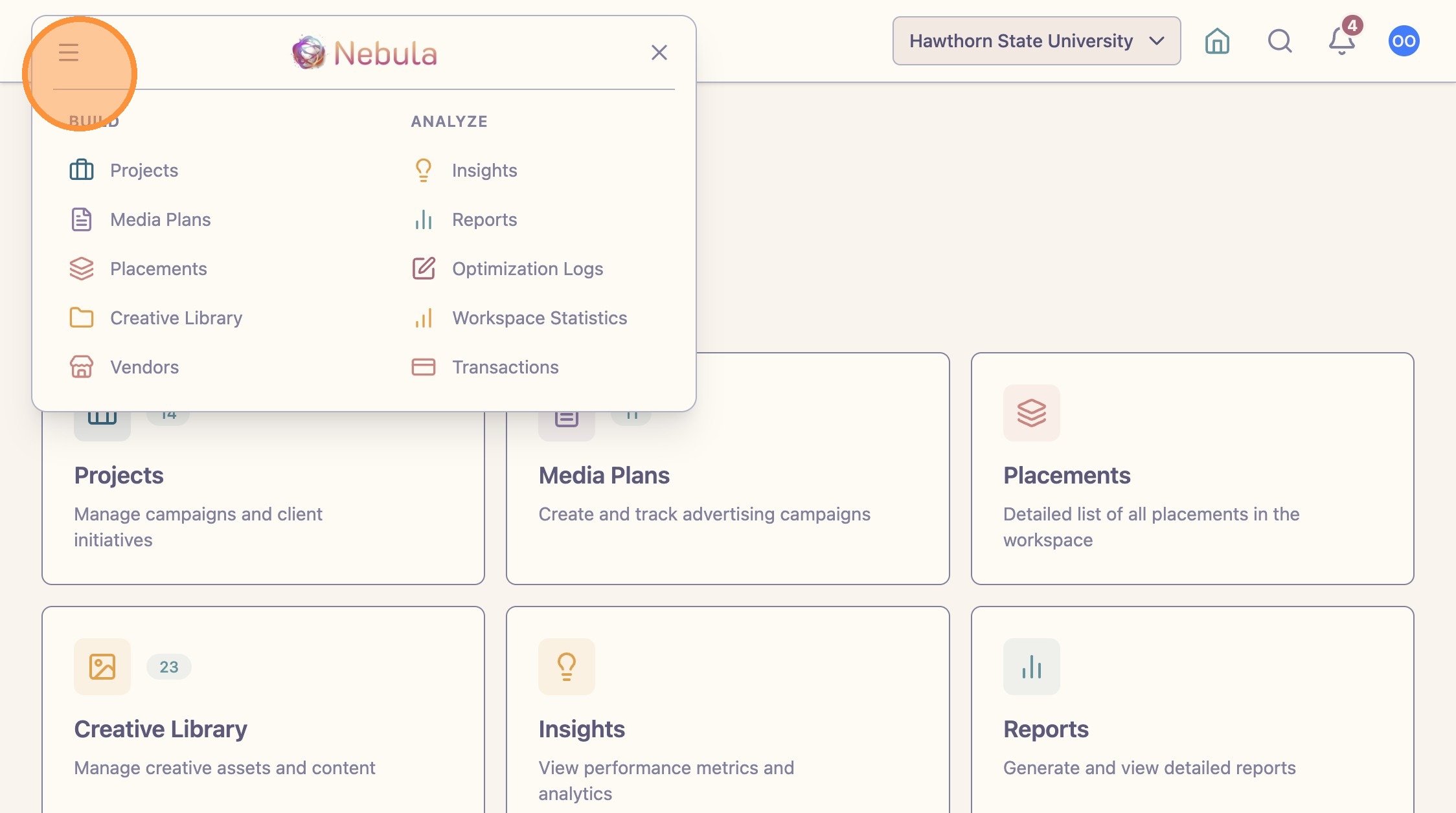
Open the navigation menu whenever you need to move between plans, creative, reports, insights, and other workspace areas.
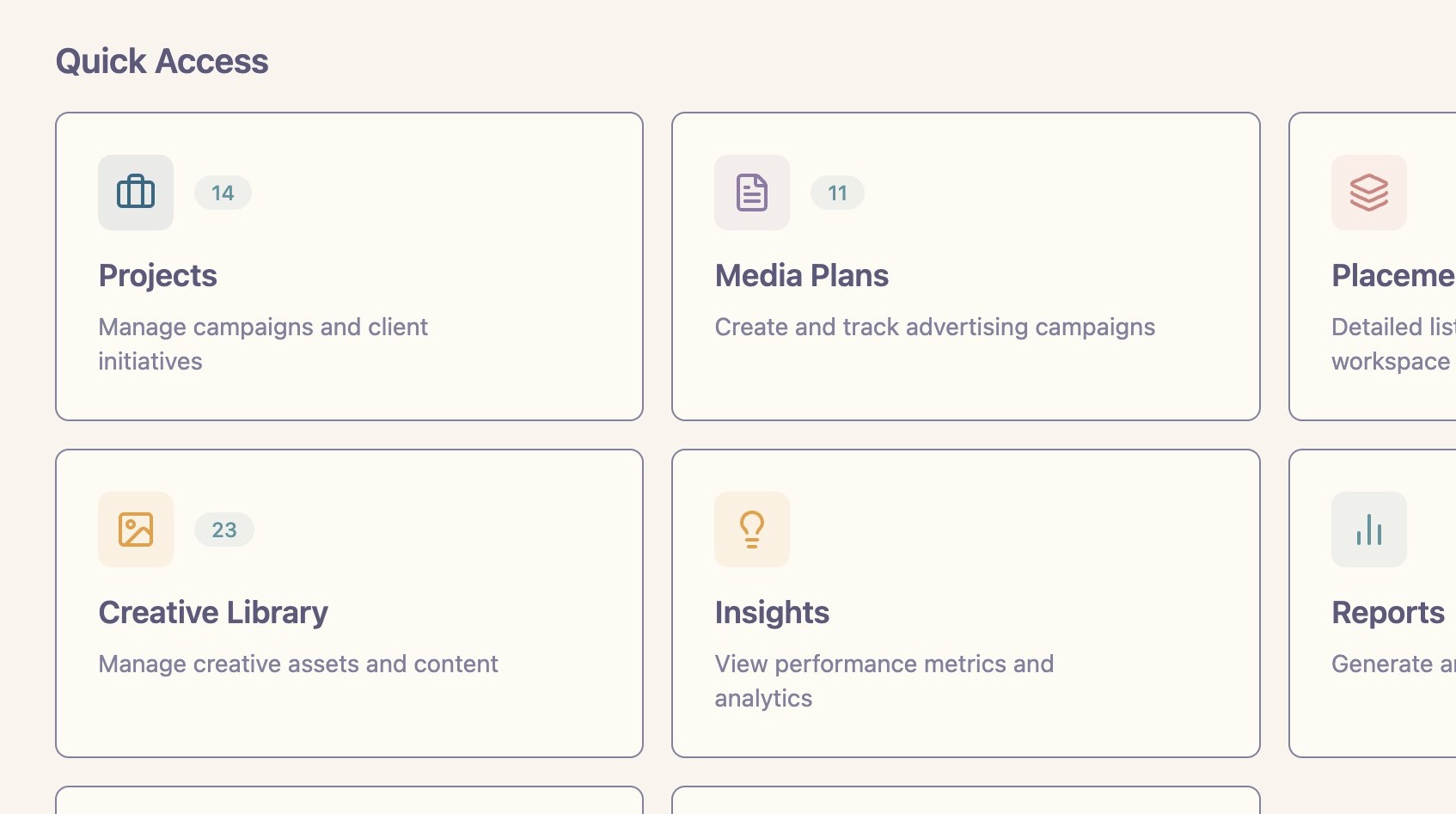
Use “Quick Access” on the dashboard to jump into the workspace areas your team uses most often.
Use “Recently Active Projects” to return to work that has been updated or reviewed recently.
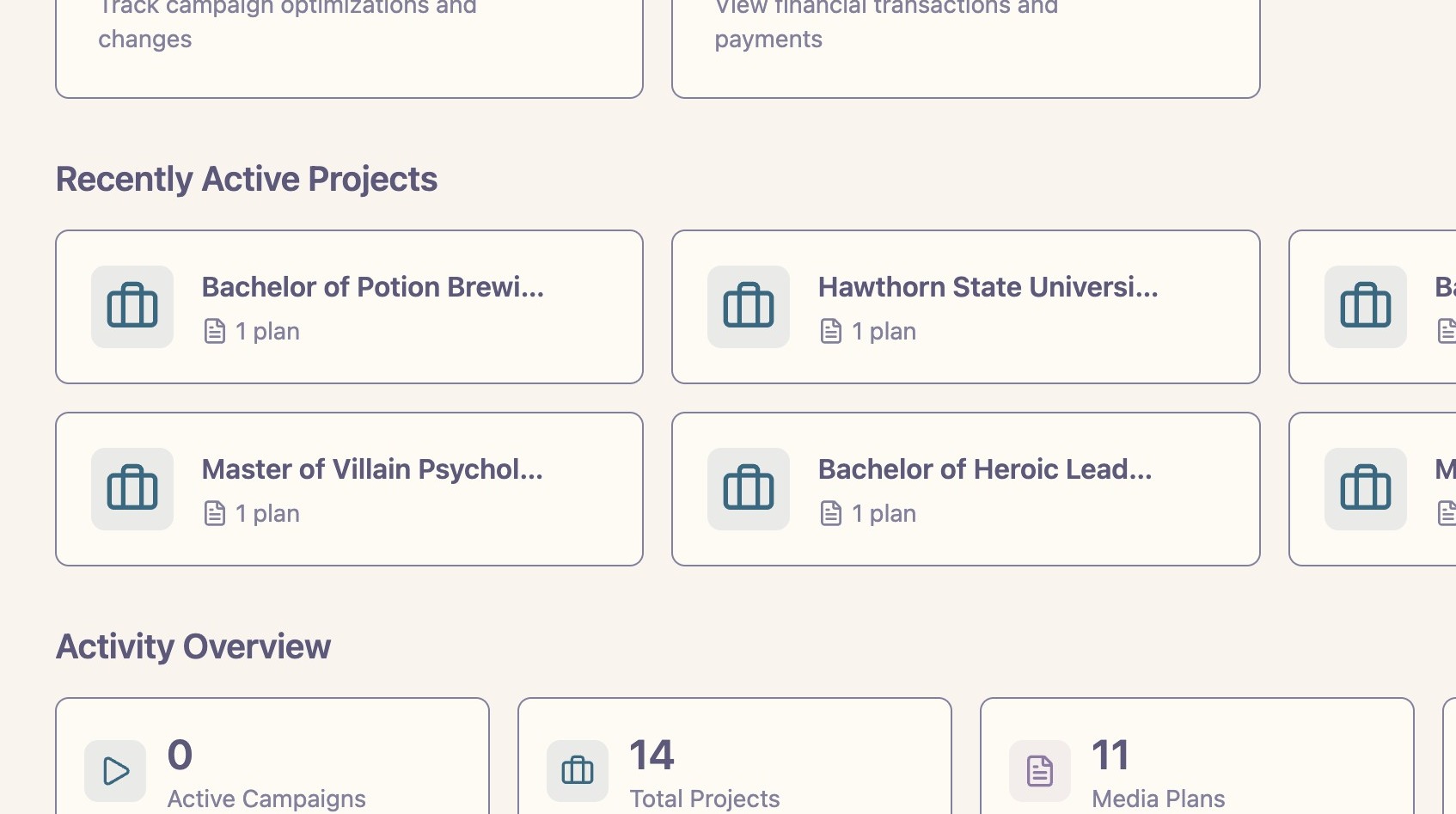
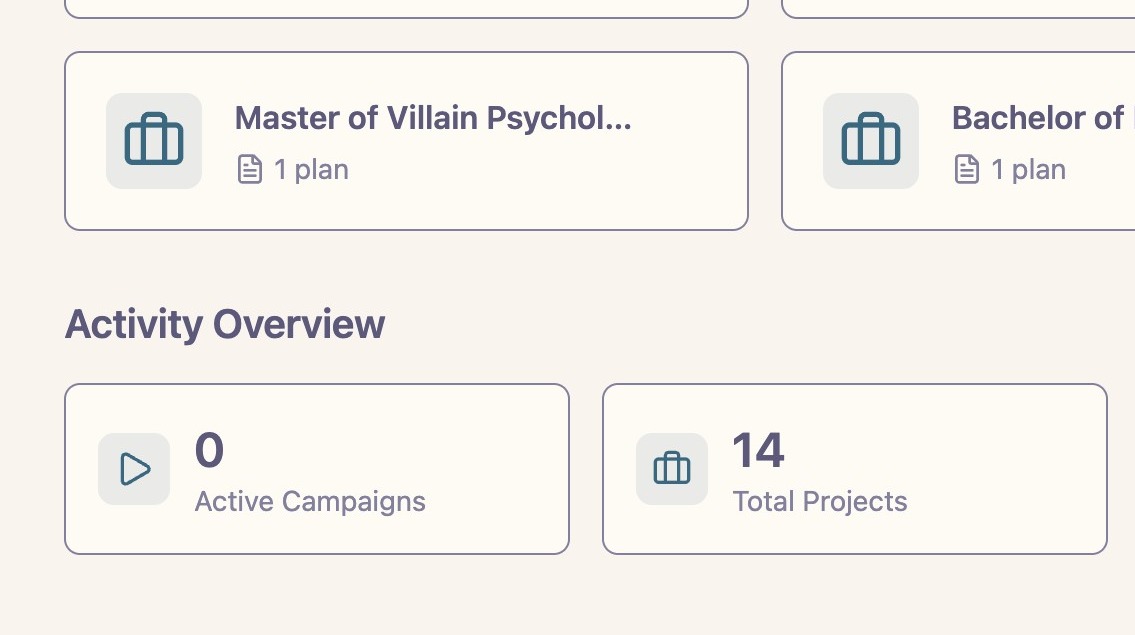
Review “Activity Overview” when you want a quick read on workspace activity and key counts.
Project navigation
Projects organize the work your team plans, reports, and collaborates around. Create as many projects and parent-child project relationships as your workspace needs to represent clients, brands, initiatives, or campaign families.
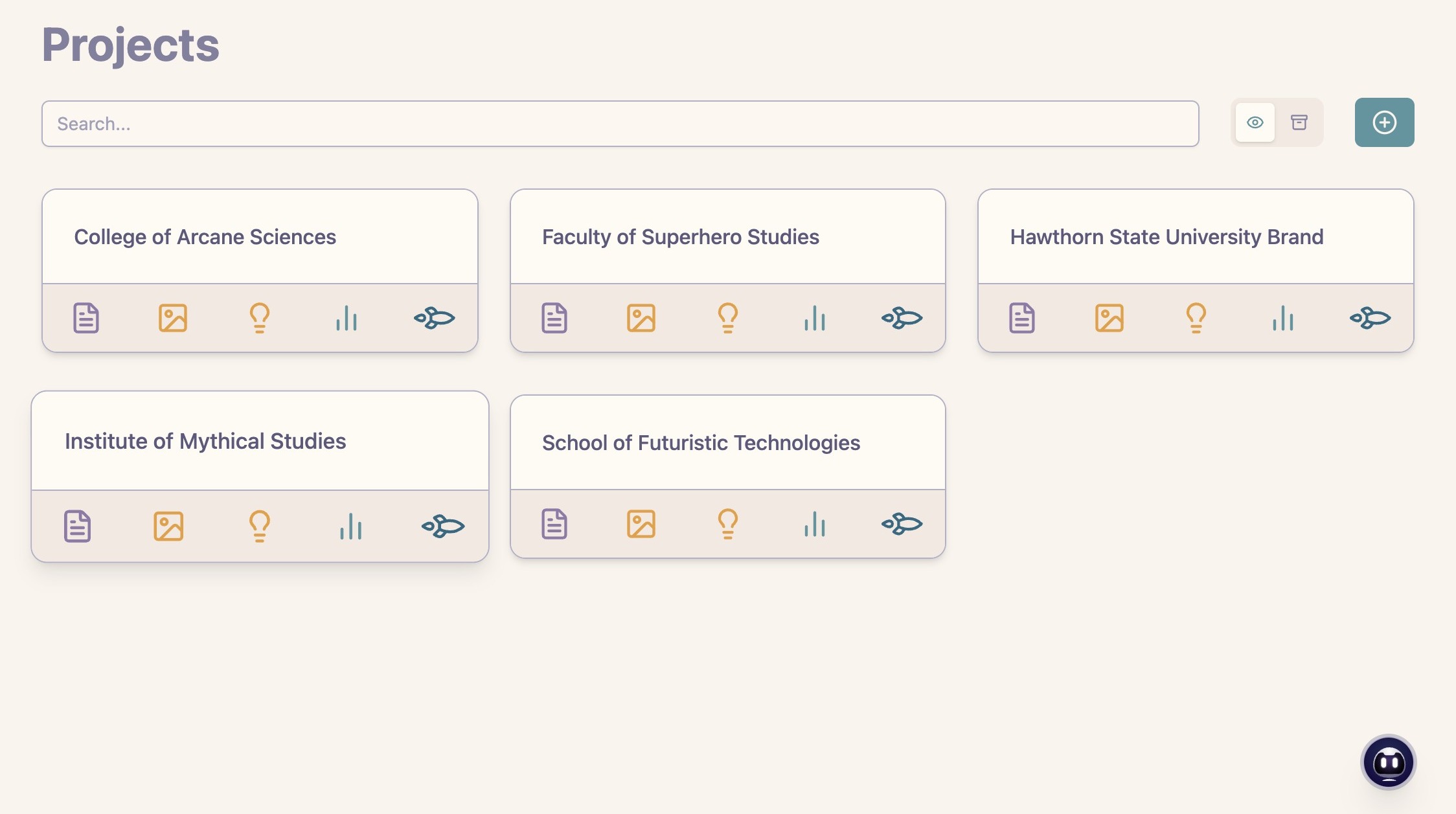
Each project contains its related media plans, creative context, client assignments, reports, insights, and upcoming launch work.
Media plan review
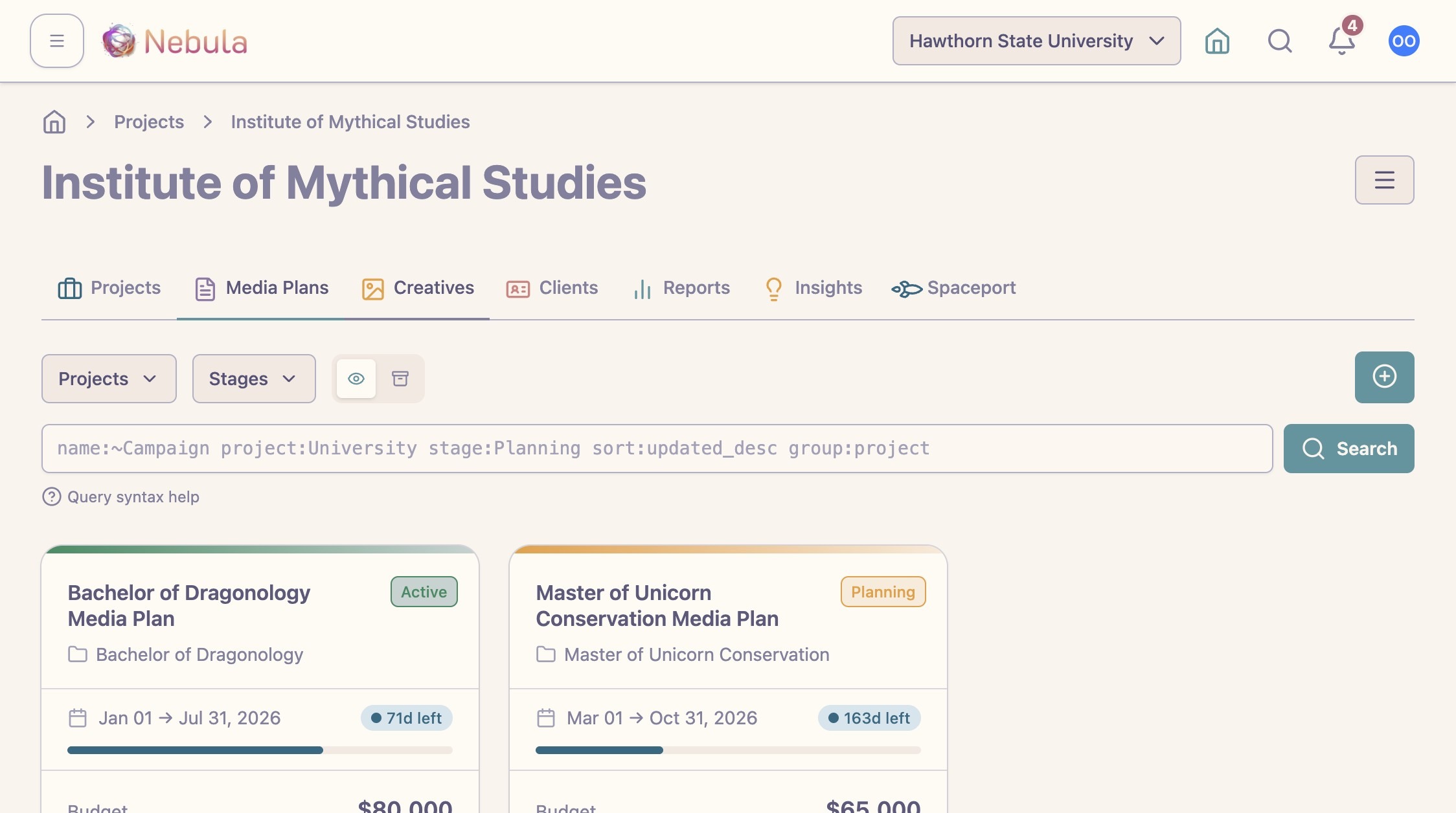
Open a media plan card to review the plan details. Expand placements when you need to see monthly allocations, fees, status, or other placement-level context. For larger plans, use channel and stage filters to narrow the view.
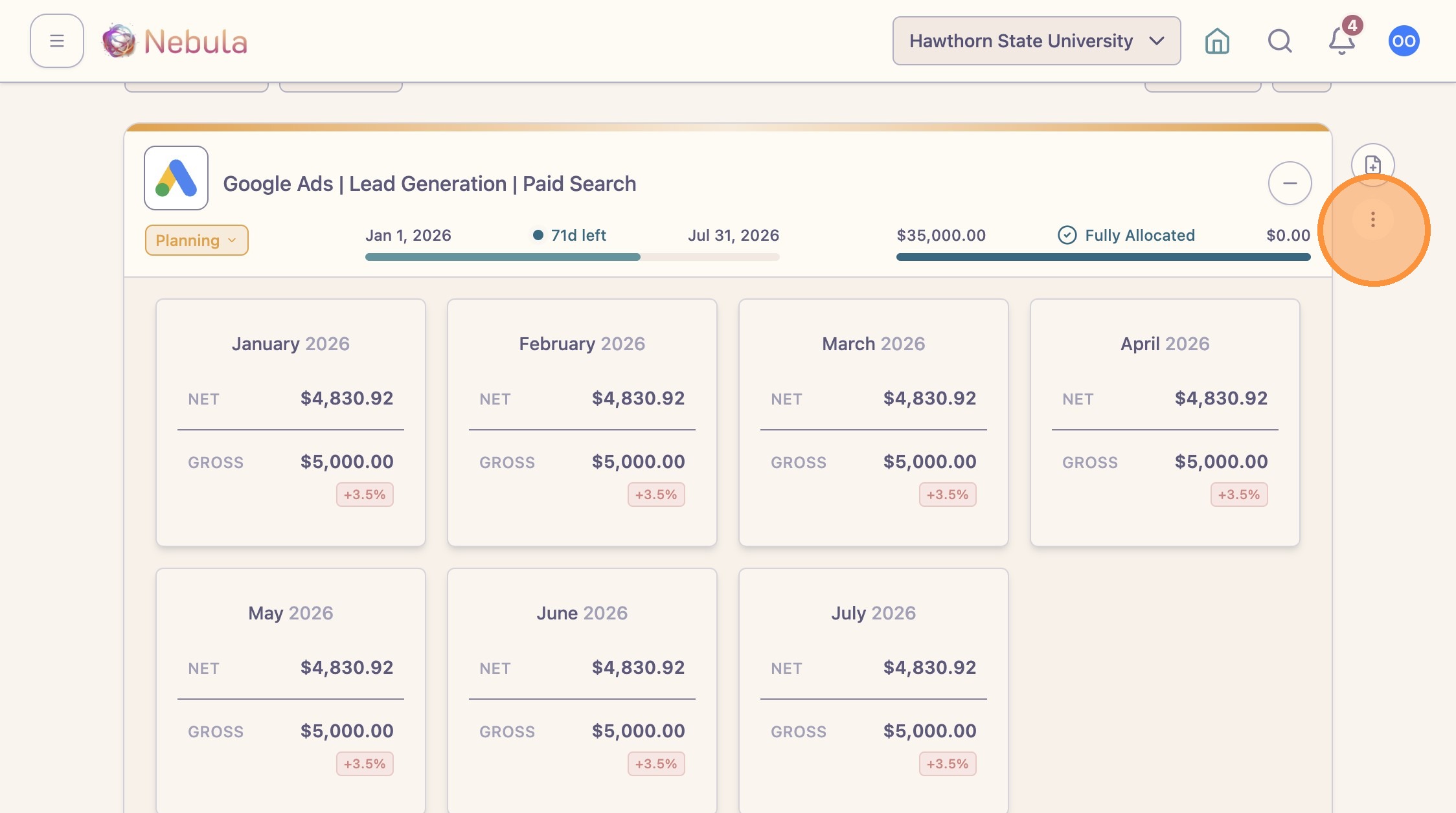
Open a placement to review linked platform campaigns and the change log for that placement.
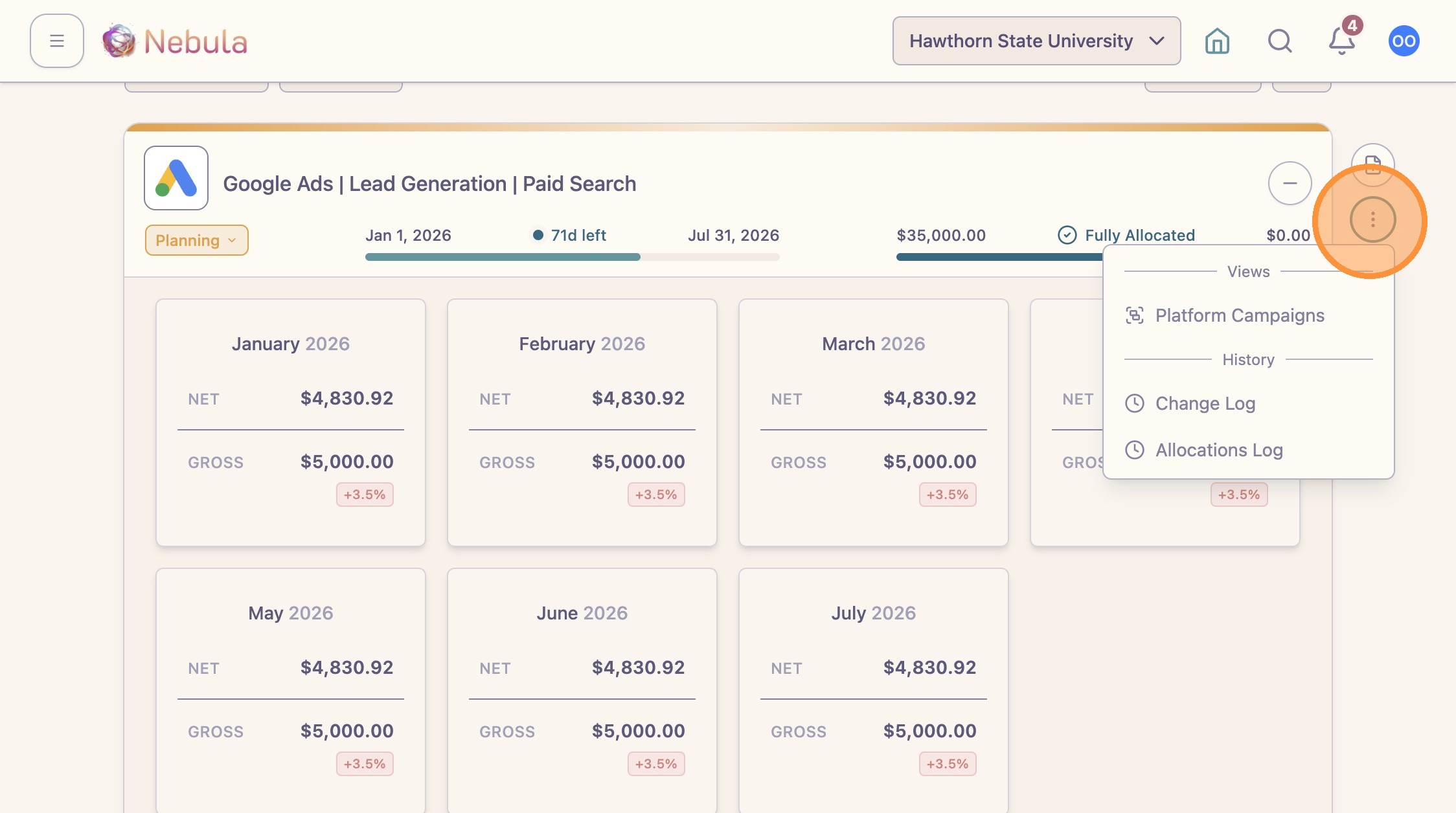
Use the calculator when you need to prepare budget updates for the ad platform. Click allocations to build a running total at the bottom of the plan.
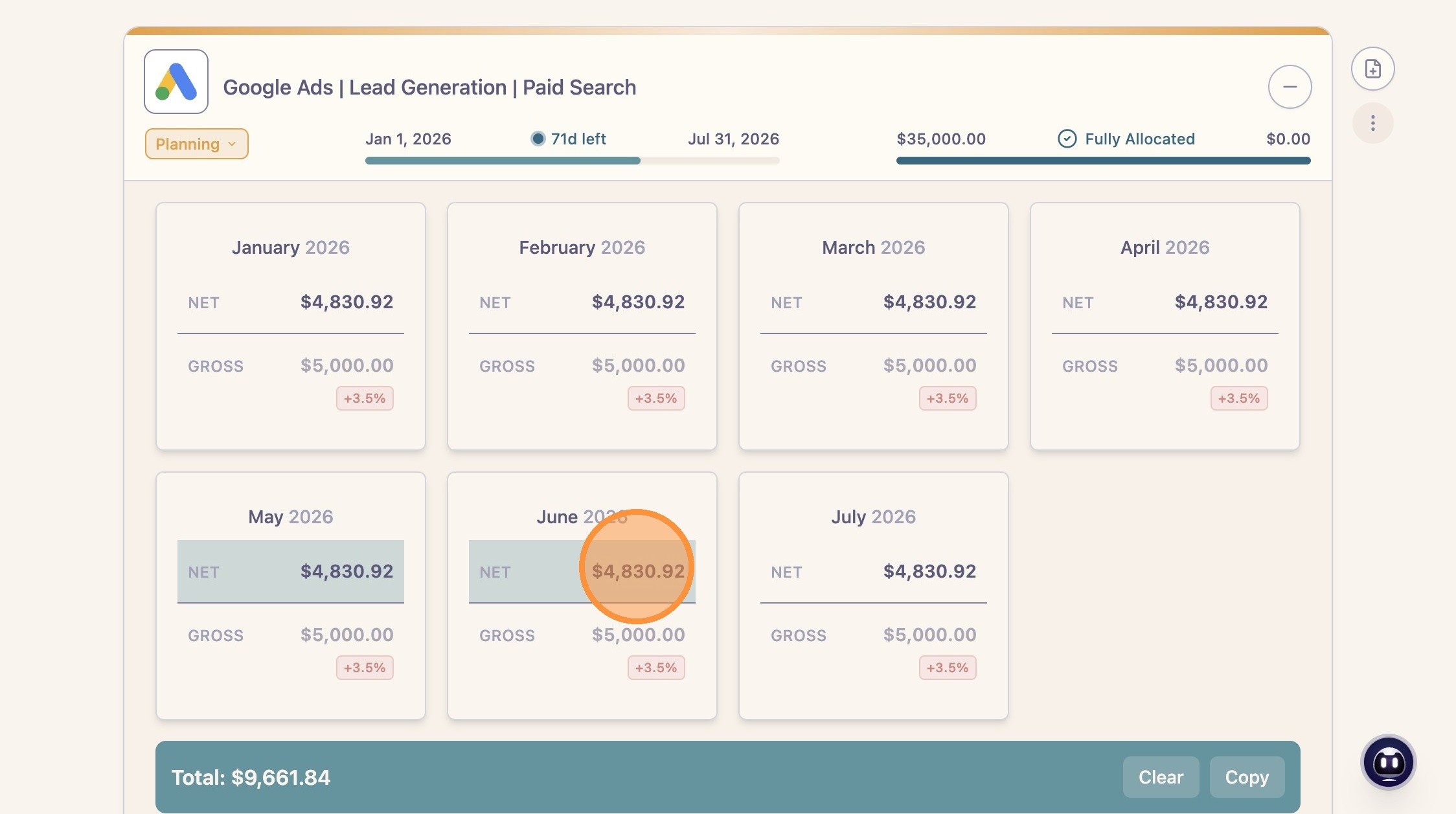
Open “Changes” to review the plan history and understand what has changed over time.
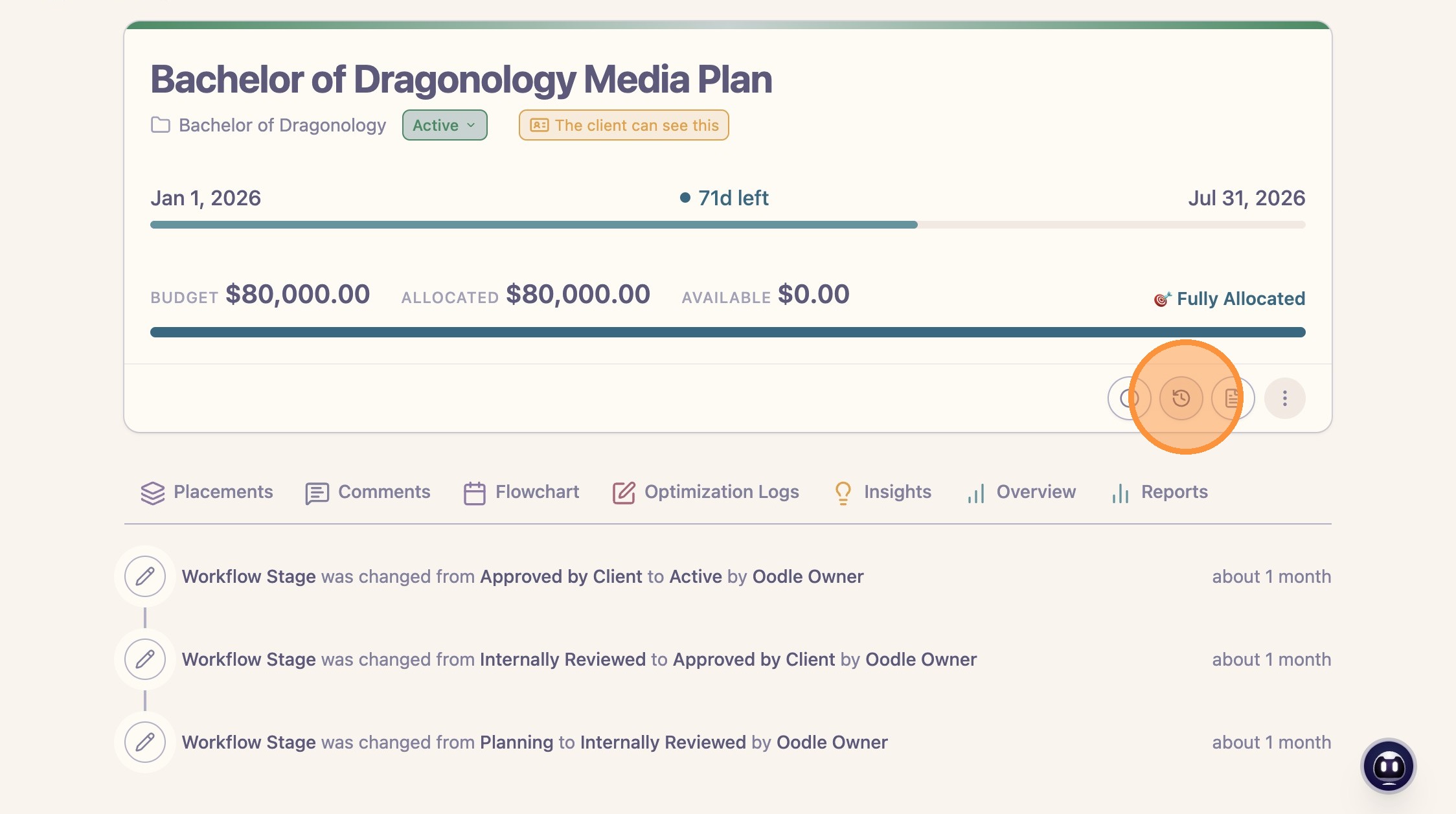
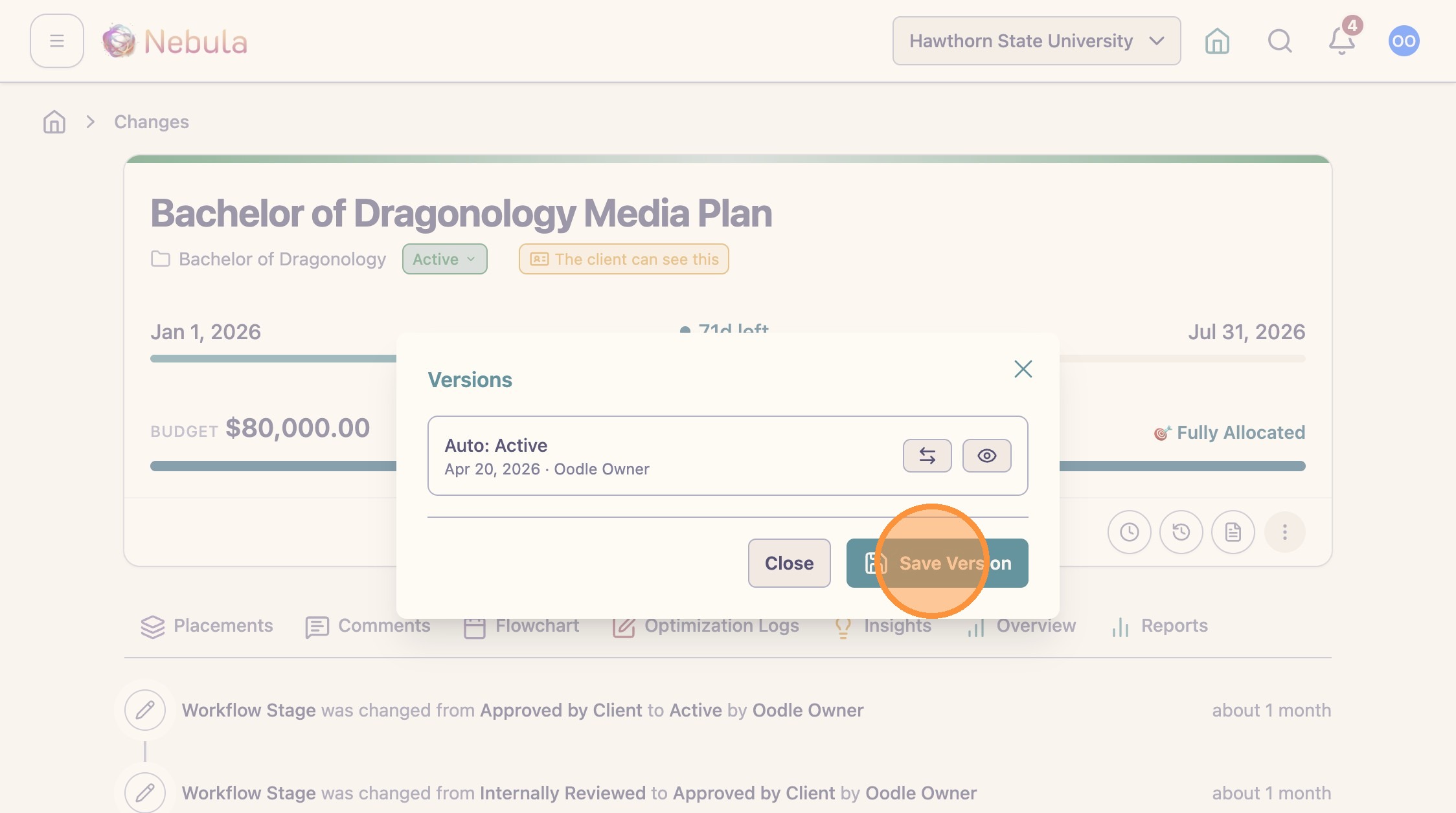
Open “Versions” when you need to review prior versions or save a new version of the plan.
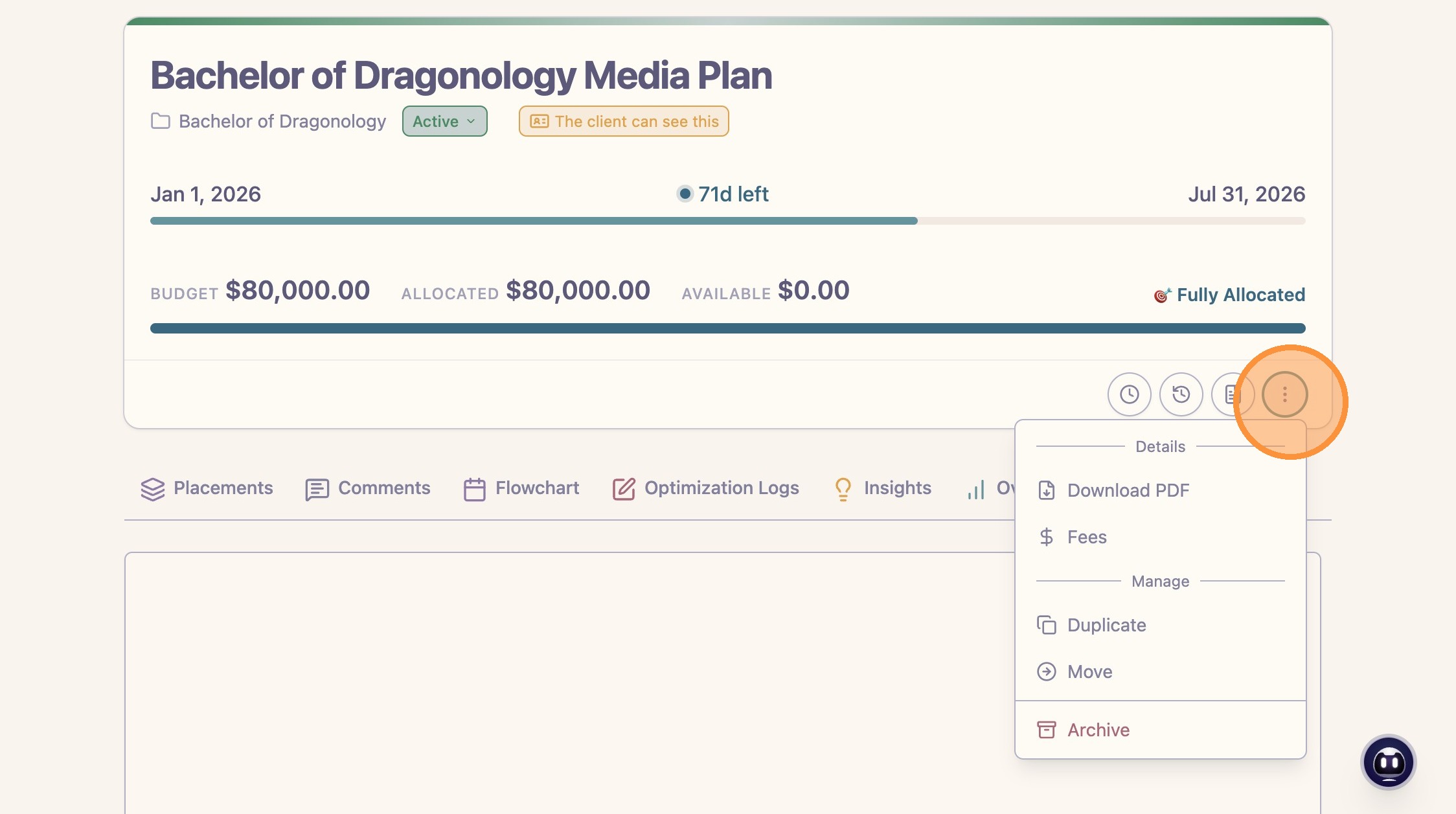
Use the media plan actions menu when you need to download a PDF, review fees, duplicate the plan, or access other plan-level actions.
Workflow approval
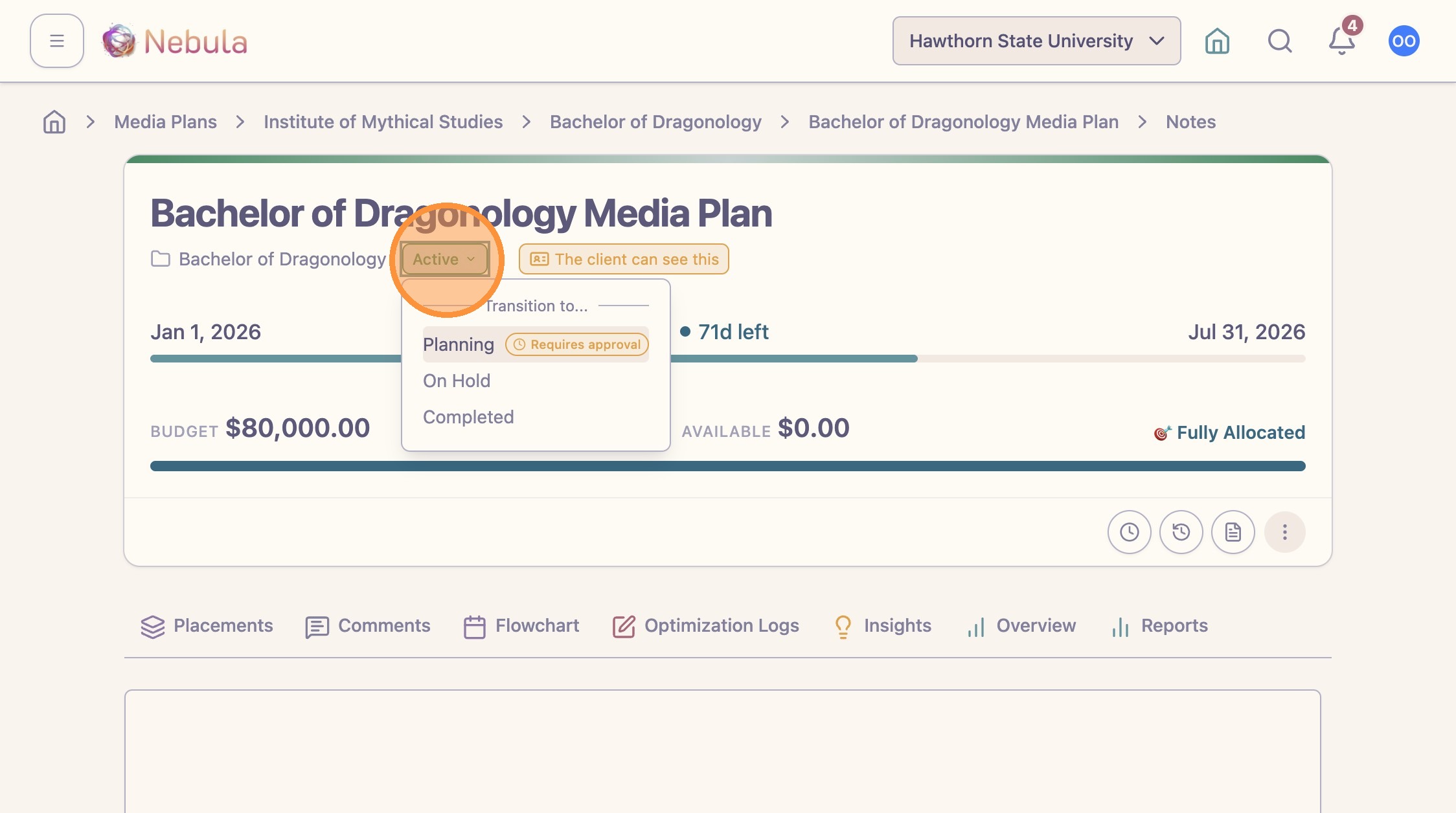
When a plan needs review, click the approval action for the planning workflow.
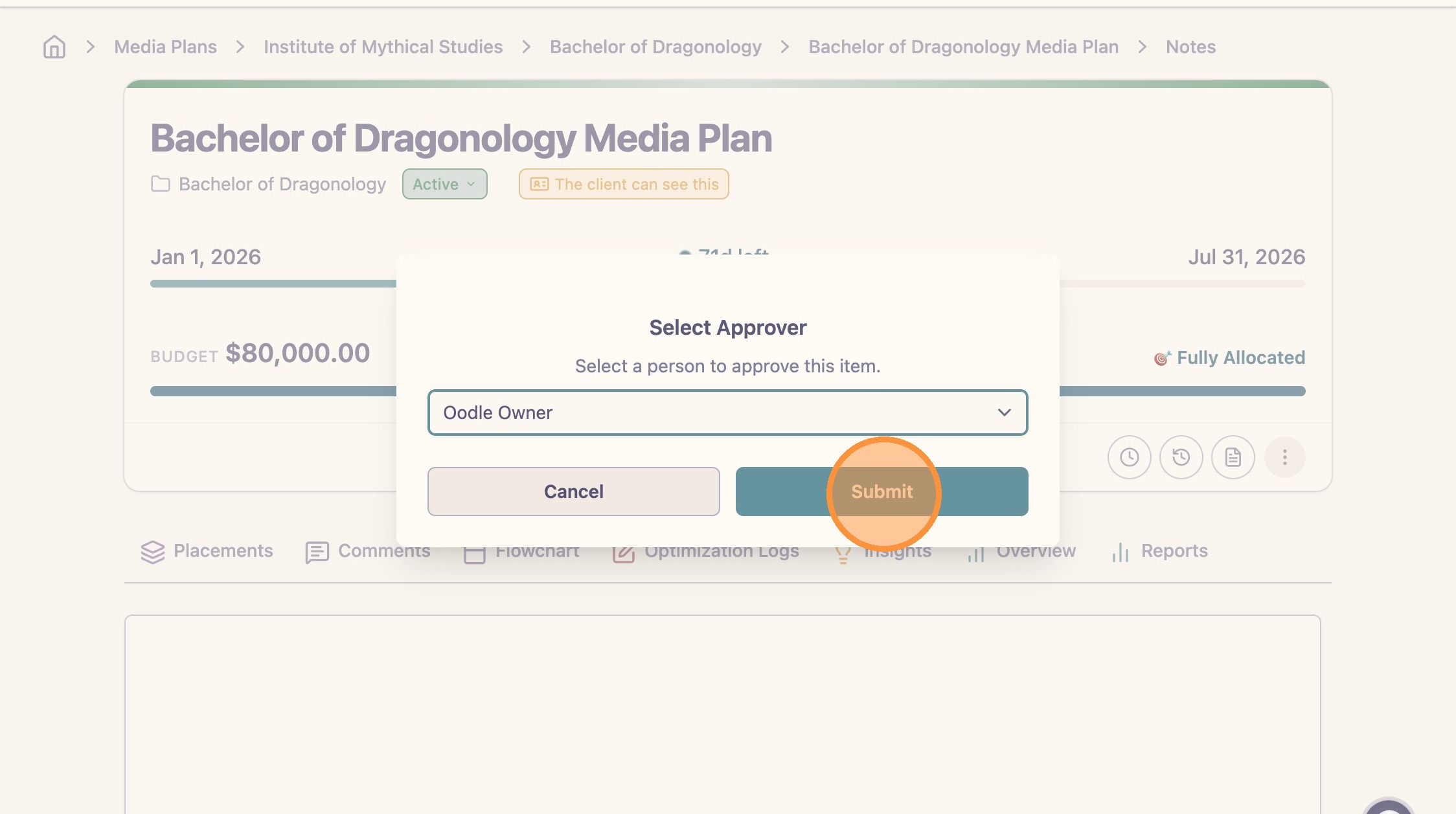
Select the approver. Nebula will send a notification by email or Slack when Slack is connected.
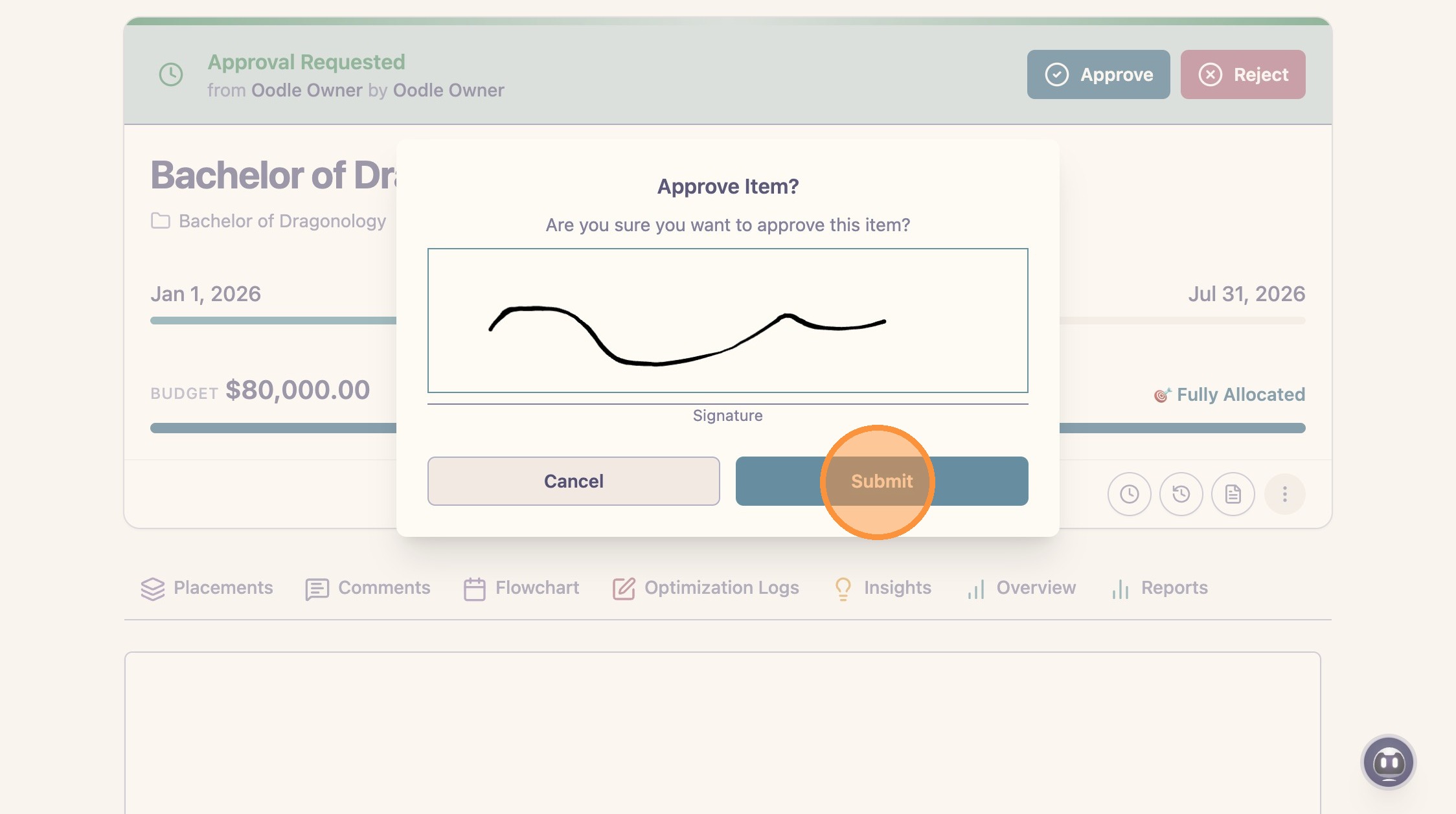
The approver can reject the plan with revision requests or approve it.
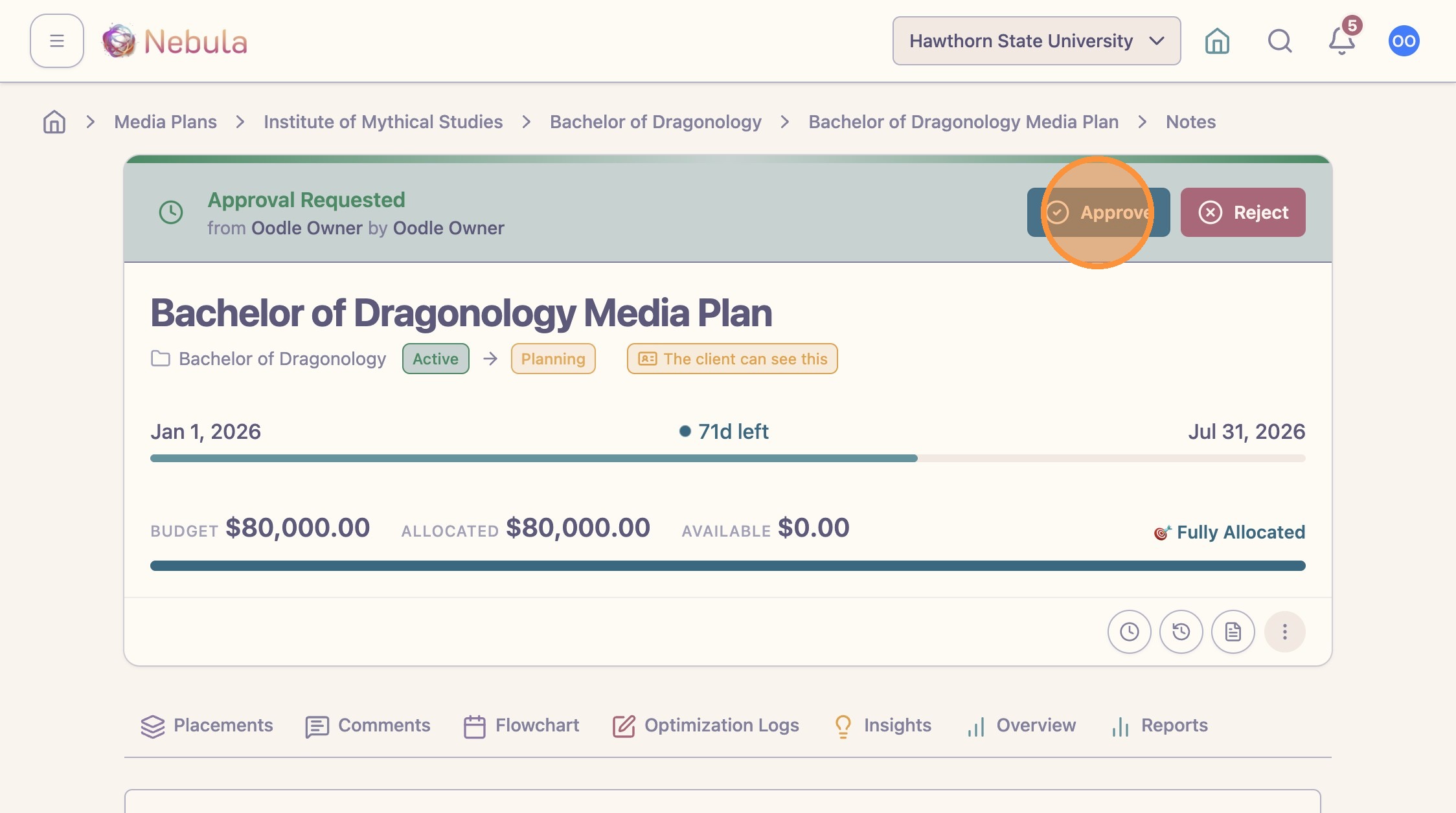
To approve the plan, the approver enters a digital signature and submits the approval. Nebula records the authorization against the plan and updates the plan status.